Technical Annotation Infographic Prompt for Product Images
- Smars
- Prompt , AI Image , Infographic
- 27 May, 2026
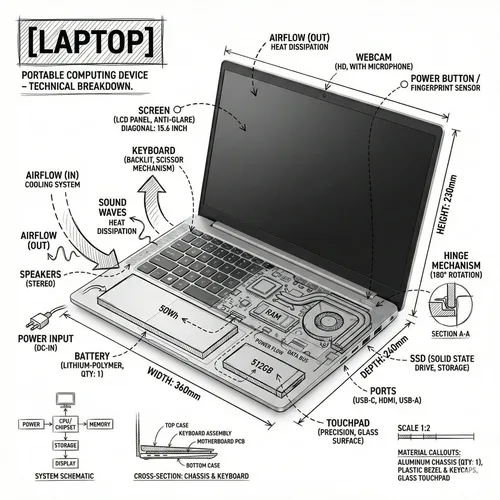
Technical Annotation Infographic Prompt
Purpose: Turn a realistic object image into a black-and-white technical annotation infographic, useful for product breakdowns, engineering-style explainers, and social-feed visuals.
Create an infographic image of [OBJECT], combining a realistic photograph or photoreal render of the object with technical annotation overlays placed directly on top.

Use black ink-style line drawings and text (technical pen / architectural sketch look) on a pure white studio background, including:
• Key component labels
• Internal cutaway or exploded-view outlines
• Measurements, dimensions, and scale markers
• Material callouts and quantities
• Arrows indicating function, force, or flow (air, sound, power, pressure)
• Simple schematic or sectional diagrams where relevant

Place the title [OBJECT] inside a hand-drawn technical annotation box in one corner.

Style & layout rules:
• The real object remains clearly visible beneath the annotations
• Annotations feel sketched, technical, and architectural
• Clean composition with balanced negative space
• Educational, museum-exhibit / engineering-manual vibe

Visual style:
Minimal technical illustration aesthetic, black linework over realistic imagery, precise but slightly hand-drawn feel.

Color palette:
White background, black annotation lines and text only. No colors.

Output:
1080x1080, ultra-crisp, social-feed optimized, no watermark.
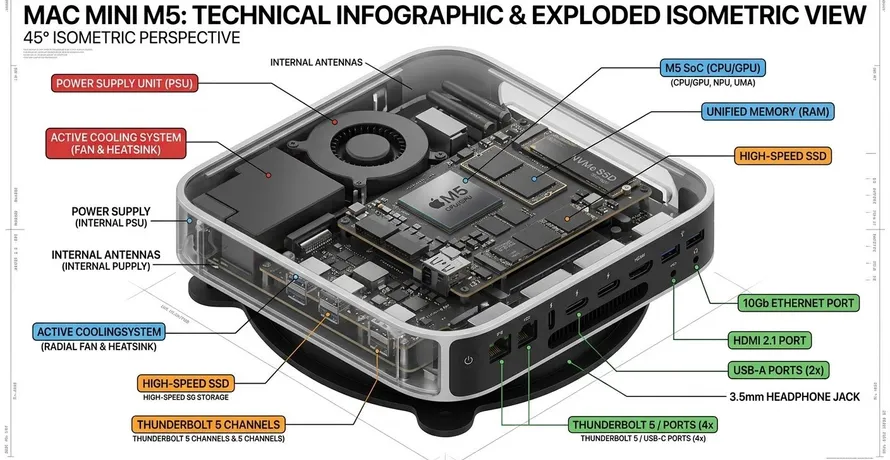
Output example:
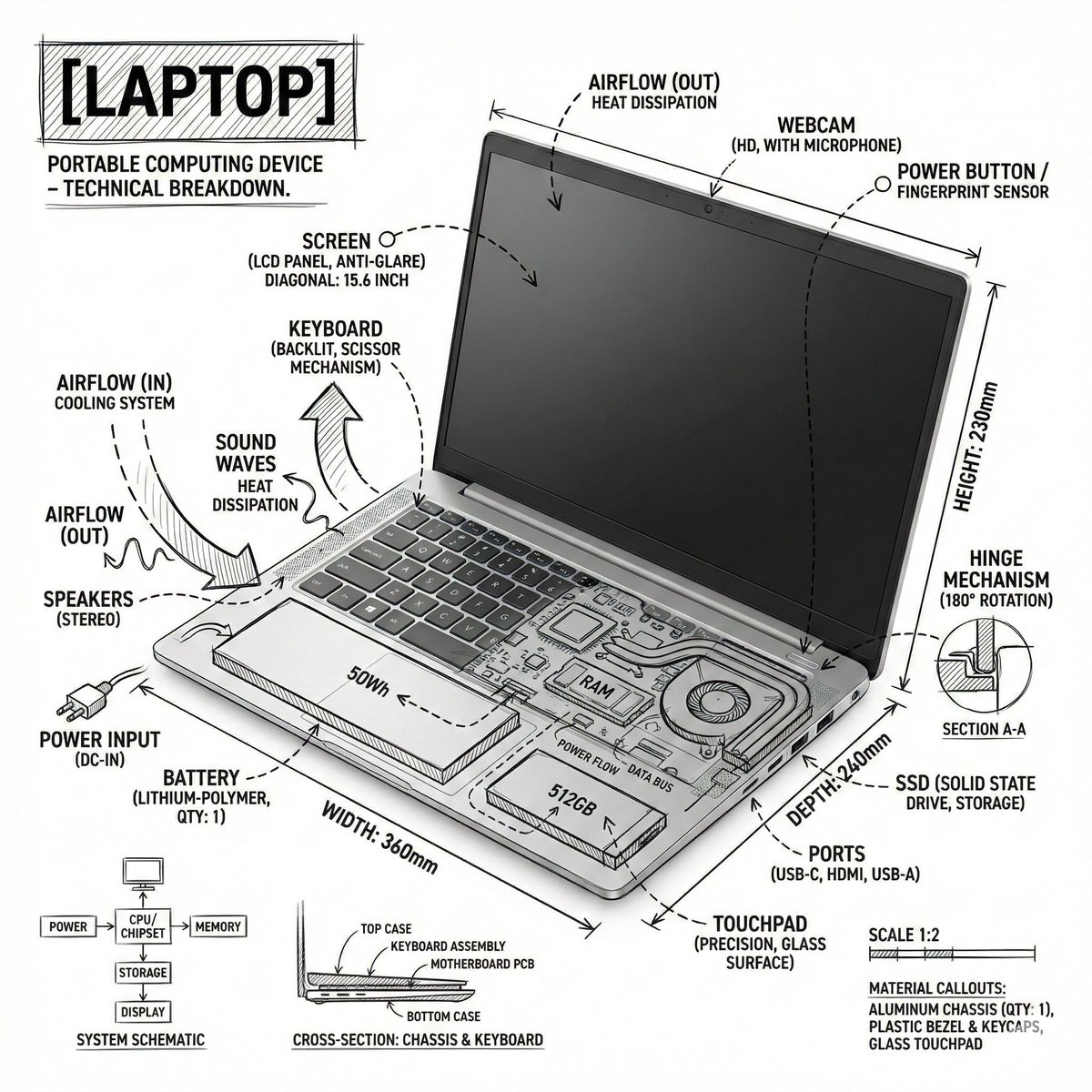
Usage:
Copy the prompt and replace [OBJECT] with the object you want to explain, such as laptop, camera, mechanical keyboard, or coffee machine. For a stronger teardown look, make the object more specific, such as a thin aluminum laptop with visible cooling system.
The original prompt includes an extra sentence asking for an X text post. If you only want the image, remove that sentence so the model stays focused on visual generation.
Design thinking:
This prompt works because it asks for two visual layers at once: a realistic object and technical annotation drawn over it. The useful constraints are:
- Real object first: Asking for a realistic photograph or photoreal render keeps the result from becoming a pure line illustration.
- Annotations on top: “Overlays placed directly on top” makes labels, arrows, cutaways, and measurements relate to the object instead of floating beside it.
- Black-and-white constraint: White background and black annotation lines only create an engineering-manual or museum-exhibit feel.
- Specific annotation types: Component labels, cutaways, measurements, material callouts, and flow arrows give the model a clear layout vocabulary.
Source: Adapted from aiiStudio’s Laptop annotation infographic prompt